 | |||
| Home | Projects | Videos | |
S1 Unlock Tool Sony Guide
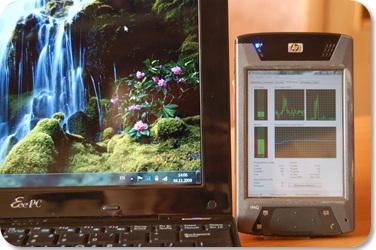
ZoneScreen is a tool for extending your desktop workspace using displays of network connected computers or portable devices like Pocket PC. Like VNC, ZoneScreen is able to mirror local desktop to another computer in the network. The main difference is that it also allows extend desktop, just like the case when you have second monitor connected.
All you need for ZoneScreen to work is network connection between your devices (your computers are both connected to the same network, or connected directly with cross-over cable or 1394 firewire cable, etc). In case you are using Poket PC, you may use connection provided by ActiveSync (using cradle cable, IR port, etc).
Extending functionality is supported for computers running Windows 2000, Windows Server 2003 and Windows XP (x86 and x64). Windows Server 2008, Windows Vista and Windows 7 support is limited.
How It Works
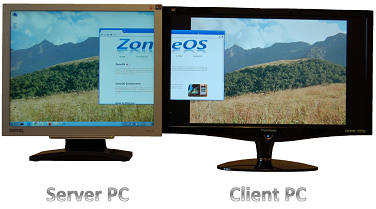
ZoneScreen consists of two parts: kernel-mode ZoneScreen Virtual Display Driver which is visible to Windows just as normal video card with monitor attached to it, and user-mode ZoneScreen Wizard which is responsible for capturing image (running at server side), transmitting it over the network, and drawing it at another computer (running at client side). Machine with extended desktop called server. Server machine have Virtual Display Driver installed and ZoneScreen Wizard running in server mode. Another machine acts only as external display and called client. Client machine have only ZoneScreen Wizard running in client mode.
Both parts of ZoneScreen (driver and wizard) can run independently, though ZoneScreen Wizard performs better when using update API provided by ZoneScreen Virtual Display Driver. Otherwize it uses frame buffer polling which is CPU consuming and generally slow. This means that in case we are interested only in mirroring desktop image, we do not need to install Virtual Display Driver. And if we are extending desktop we could install ZoneScreen Virtual Display Driver and use any other image redirecting software on top of it. For example, modified TightVNC Server is capable of using ZoneScreen Driver update API.
S1 Unlock Tool Sony Guide
The S1 Unlock Tool for Sony: A Deep Dive into Bypassing Factory Reset Protection (FRP)
Official Alternative
For most Sony Xperia devices, the official bootloader unlock is available via Sony’s website:
- Go to Sony Developer World.
- Submit your IMEI and unlock code.
- Use
fastboot oem unlock 0x<key>from a PC.
This method preserves DRM functionality (via software workaround) and is safe.
When to seek professional help
- You must recover data from a bricked phone.
- The device uses strong hardware locks and you lack JTAG/ISP experience.
- You cannot obtain an official unlock and need guaranteed recovery.
If you want, tell me the exact Sony device model and current firmware/bootloader version and I’ll provide the most applicable, model‑specific unlocking options and step‑by‑step commands.
What is an S1 Unlock Tool?
The S1 unlock tool is a software utility used to unlock the bootloader of Sony devices, particularly those with an S1 bootloader. This tool allows users to gain access to the device's bootloader, which can be useful for advanced users who want to customize their device, install custom ROMs, or gain root access.
Sony Bootloader Unlocking
Sony provides an official bootloader unlock process for some of its devices. This process involves using a specific tool, unlock_code, which generates an unlock code based on the device's IMEI number. However, not all Sony devices support bootloader unlocking, and some may require additional steps or tools.
S1 Unlock Tool Paper/Documentation
If you're looking for documentation or a research paper on the S1 unlock tool, I was unable to find any specific academic papers on the topic. However, there are various online resources, forums, and blogs that provide guides and tutorials on using the S1 unlock tool and unlocking Sony devices.
If you're interested in learning more about unlocking Sony devices or the S1 unlock tool, I can suggest some online resources:
- XDA Developers: A popular forum for Android developers and enthusiasts, with sections dedicated to Sony devices and bootloader unlocking.
- Sony's official support pages: Sony provides official documentation on bootloader unlocking for some of its devices.
Here are a few options for a post about the "S1 Unlock Tool" for Sony devices, depending on where you plan to post it (e.g., a tech blog, a forum, or social media).
Risks and Warnings
Using the S1 Unlock Tool is not like using a simple APK. If done incorrectly, you can permanently destroy your device.
- Permanent Brick: Flashing the wrong S1 loader or corrupting the trim area can result in a "Deep Dive" brick—a state where the phone will never turn on again, even with a JTAG.
- Warranty Void: Using any third-party bootrom tool immediately voids your Sony manufacturer warranty.
- Security Downgrade: Bypassing FRP or unlocking the bootloader via S1 methods often leaves security flags tripped, making the device vulnerable to malware.
- Cost: Genuine S1 Tool boxes (like the "S1 Tool Box v2") are expensive ($150–$300). Many free downloads labeled "S1 Unlock Tool" are actually viruses or malware designed to steal your data.
Conclusion: Is the S1 Unlock Tool Worth It?
The S1 Unlock Tool occupies a useful but narrowing niche. For technicians handling many older Sony Xperia devices, it can be a quick, cost-effective solution. For individual owners with a modern Xperia (Android 11+), it is likely a waste of money and time. s1 unlock tool sony
Final verdict:
- Worth trying if: You have an Xperia XZ2 or older, you own the device, and you’re willing to pay for a legitimate version.
- Avoid if: You have an Xperia 1/5/10 III or newer, you’re not technically savvy, or you’re tempted by a “free download.”
Before using any FRP bypass tool, always back up your data (if possible) and try official recovery methods first. And remember: security features exist for a reason. Use bypass tools only on devices you have every right to access.
Disclaimer: The author and publisher do not endorse unauthorized access to mobile devices. This article is for informational and educational purposes only. Laws regarding FRP bypass vary by country; consult a legal professional if unsure.
The Sony S1 Unlock Tool (often referred to as qUnlockTool) is a third-party utility used to bypass "hard locks" on Sony Xperia devices. It is primarily known for its ability to change the status of "Bootloader Unlock Allowed: No" to "Yes," which is otherwise impossible through official Sony methods. 🛠️ Key Capabilities
Network "0" Counter Fix: Unlocks devices that have exceeded the maximum number of failed network unlock attempts (the "hard lock").
Bootloader Status Toggle: Changes a device's status to allow bootloader unlocking, even if originally restricted by a carrier.
Carrier Freedom: Enables the use of SIM cards from different providers on formerly restricted handsets. ⚠️ Current Availability & Risks
Server Status: Most reports as of May 2024 indicate that the primary servers for this tool are offline or no longer selling the necessary credits.
Paid Credits: Historically, this was not a free tool. Users had to purchase "credits" (roughly $20–$30) from third-party resellers to perform the unlock.
Data Loss: Unlocking bootloaders or performing deep system resets through these tools typically triggers a factory reset, erasing all user data.
Stability Issues: Some users have reported losing SIM card signals or encountering software bugs after using the tool. 🔍 How to Check Your Phone's Status
Before looking for a tool, you should check your device's internal lock status: Open the dialer and enter *#*#7378423#*#*. Navigate to Service info > Configuration or SIM lock. The S1 Unlock Tool for Sony: A Deep
Check "Bootloader unlock allowed": If it says No, you cannot unlock it officially through Sony; only tools like the S1 Unlock Tool (if active) could bypass this.
Check Network Counter: Look for an [X] next to "Network." If the number next to it is 0, your phone is hard-locked.
Conclusion
The S1 Unlock Tool exists as a legacy solution for older Sony phones where official unlocking is no longer possible or for repairing devices with forgotten credentials. However, due to high risk of bricking, legal issues, and loss of features, it is not recommended for general users. Always prefer Sony’s official unlock method for Xperia devices that support it.
This guide is for educational purposes only. Unauthorized modification of device software may violate terms of service and local laws. Proceed at your own risk.
The S1 Unlock Tool (often referred to as qUnlockTool or S1 Network Tool) is a specialized, paid, third-party software primarily used to unlock the SIM/Network lock on Sony Xperia devices, particularly those that are "hardlocked" (where the unlock counter is at zero) or have "Bootloader Unlock Allowed: No". ⚠️ Critical Pre-requisites & Risks
Costs Money: This is not a free tool. It requires purchasing server credits from a reseller.
Data Loss: Unlocking your bootloader via this method will factory reset your device, erasing all user data.
Hardlock/Bootloader: It is commonly used when conventional codes fail, especially for Japanese (Docomo) or carrier-locked models. 1. Preparations
Backup Data: Copy all photos, contacts, and files to a computer, as the process will factory reset your phone.
Charge Battery: Ensure your phone is charged to at least 50%.
Install Drivers: Install the necessary USB and Fastboot drivers on your Windows PC.
Download Tool: Download the S1 Unlock Tool/qUnlockTool (ensure it is from a trusted source). Go to Sony Developer World
Obtain Credentials: Purchase 1 server credit and obtain a username and password from a qUnlockTool reseller. 2. Guide to Using S1/qUnlockTool (SIM Unlock) This process unlocks the network to accept any SIM card.
Check Status: Power on the phone without a SIM, dial *#*#7378423#*#*, select Service info > Configuration > Rooting Status. Turn Off: Turn off the phone. Launch Tool: Open qUnlockTool.exe on your PC.
Login: Enter the username and password provided after purchase.
Connect Device: Hold down the Volume Down button on your phone and connect it via USB to the PC. Unlock: Click the "Unlock" button in the software.
Finalize: Wait for "UNLOCK DONE" to appear. The phone will reboot. 3. Guide to Changing Bootloader Status (No to Yes)
If your phone says "Bootloader unlock allowed: No", this tool can flip it to "Yes".
Follow the same steps as above, but in the tool, select the Bootloader Unlock option instead of Network Unlock.
Once finished, the phone will allow you to proceed with official bootloader unlocking via ADB/Fastboot. Troubleshooting
Tool Failing: Temporarily disable Antivirus/Windows Defender, as they often block this tool.
Driver Errors: Ensure you are using the correct 32-bit or 64-bit drivers included in the tool's package. To give you the best guide, I need to know:
What is your specific Sony Xperia model (e.g., Xperia 5 II SOG02)?
Are you trying to unlock the SIM/Network (to use another carrier) or unlock the bootloader (to root/install custom ROM)?
What does *#*#7378423#*#* say for "Bootloader unlock allowed"? AI responses may include mistakes. Learn more
- ZoneScreen 1.1 Driver must be installed and 'Extend desktop onto this monitor' for ZoneScreen Display is checked.
- For security reasons Update API is available to local administraotrs only. In Windows Vista/7 server process of TightVNC must be executed under elevated administrator in order to be able to use Update API.
Using force-detected display in Windows 7
If disabled Aero effect of Windows 7 is not an option, there is one workaround available for most modern computers: use built-in dual-head capabilities of a graphics adapter. If your video card have extra output but nothing is connected (for example, you cannot connect old laptop to that output because laptops missing video inputs) you still can extend your desktop onto this monitor, redirecting it's content with ZoneScreen wizard or using VNC. To do this, click "Detect" in "Screen resolution" settings applet, and even if you see "Another display not detected" you could force Windows to use it by clicking "Try to connect anyway" in "Multiple displays" drop-down menu.
Other Systems (Linux, Android, etc) as Client Devices
There is no ZoneScreen Wizard ports for Linux and Android, but it is possible to use cross-platform implementations of VNC as a replacement for ZoneScreen wizard. For example, server machine with Windows XP, ZoneScreen Virtual Display Driver and and VNC Server could use client machines with any operating system which supports VNC client. Because virtual display is completely identical to normal display, VNC Server could be transparently used above ZoneScreen display driver. Also you could run ZoneScreen Wizard (build for Windows 98) in Linux under Wine.
If you have nice how-to guide about using Android device as ZoneScreen display feel free to email it to me so I can publish key points here.
Release notes
- On Windows Server 2008 and Server 2008 R2 (if 'Desktop experience' feature is installed) and sometimes on Windows 7 Ultimate glass-transparence must be disabled manually before attaching ZoneScreen display by applying 'Windows 7 Basic' theme, in order to avoid transition problems. There is no chances to keep Aero anyway.
- As ZoneScreen Wizard lacks many features available in most VNC implementations, it is good idea to try VNC-like application instead of Wizard ontop of ZoneScreen Virtual Display Driver. For example, modified TightVNC Server is capable of using update API of ZoneScreen Driver.
- ZoneScreen Display is not visible in desktop properties applet in Windows 7. While I'm working on this issue you can use command line tool to manually adjust display position.
- ZoneScreen Wizard does not use encryption transmitting data between client and server. Therefore all information you send to client is potentially available to everybody in the network.
- Limited set of screen resolutions is hardcoded to virtual display driver, and up to 10 custom resolutions could be defined using ZoneScreen Wizard.
- Supported color depths are 8, 16, 24 and 32-bit.
- ZoneScreen Wizard supports command line scripting. Run 'zsserver.exe /?' to see available options.
- Windows XP Sp1 has a bug, which affects ZoneScreen Virtual Display Driver. Upgrade to Sp2 solves the issue. Note that this affects only server machine (client machine do not need ZoneScreen Driver to be installed).
- You could add more than one virtual display, though this feature is not incorporated into installer. Run 'zsserver.exe /installdisplay' from ZoneScreen program folder.
New Versions of ZoneScreen
If you need ZoneScreen in a different configuration (operating system, CPU architecture or language), or you have suggestion for a new feature to be implemented, it is very unlikely for new versions to appear in the nearest future. I have had plans for ZoneScreen 2.0 with WDDM dummy driver supporting Windows 7, but I do not have much time for it. I haven't done any changes to ZoneScreen in years.
Copyright © 2006-2011 Vasily Tarasov.