| WA8LMF Home Page | Main Ham Radio Page | Main APRS Page | Updated 01 June 2020 |
This program allows you to automatically download and stitch bitmap tiles from Google Maps, Microsoft Virtual Earth, Yahoo Maps or Open Street Map into seamless map images of virtually any size. It allows you to download either street map or satellite views from any of these sources.
The images captured by this program are non-projected (i.e. simple rectangular X/Y grid with latitude and longitude lines at right angles) at least for distances of 85-100 miles (130-160 KM) across. The assembled maps are suitable for use directly with any APRS program that can use static (fixed non-zooming) images as maps, or as underlays for the Precision Mapping Server plugin for UIview. The images align perfectly with the non-projected vector maps produced by Precision Mapping in UIview.
Note that when used with UIview, downloaded/tiled images can be far larger (in pixels) than the resolution (in pixels) of your computer display system. UIview will "automagically" create a "viewport" window that shows a portion of the oversized map image. You can then scroll (but not zoom) around the entire map. UIview DOS NOT downsample the map image into an illegible blur in an effort to fit all of it onto the screen at once. If you reduce the color depth of map images to 256 or 16 colors, UIview can easily handle 4000x4000 pixel images or larger. iIe. the equivalent of "Ultra-HD" a.k.a. "Quad-HD" images, even if the computer display is far lower resolution -- 1024x768 XGA or 1920x1080 "full HD".
Universal Maps Downloader a.k.a. "UMD" is a $59.95 shareware program. The free "trial" download has limited functionality; it will download maps at a resolution suitable for regional coverage. For higher resolution downloads suitable for street-level applications, it requires registration. The program is available from
<http://www.allmapsoft.com/umd>
The program has a total installed footprint of about 5 MB. Of course, you will want considerably more space for captured map images. UMD actually consists of three separate .EXE files: the main program that does the downloading of a specified area, a "Map Viewer" that can display the collected tiles as a single large image, and a "Map Combiner" that stitches the downloaded tiles into a single large .BMP file.
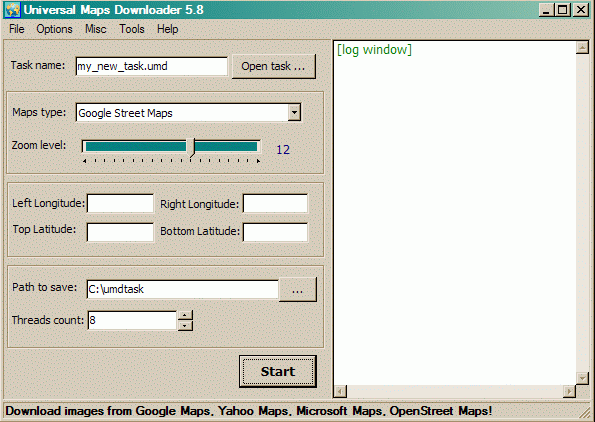
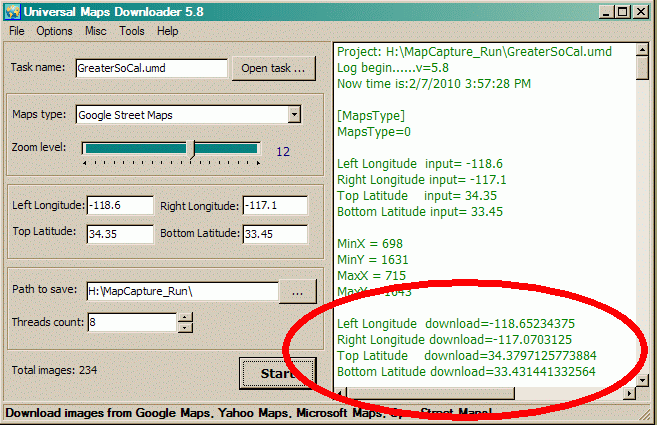
When you start the main program, you are greeted by this screen. The un-calibrated "Zoom level:" slider increases/decrease the linear resolution about 2:1 for each step; i.e. quadruples or quarters the number of pixels in the resulting image. The actual size of each downloaded tile is a constant 256x256 pixels regardless of resolution requested. As you increase the resolution, the number of these tiles downloaded (for a given area defined by a pair of lat/long values) increases. Requesting a county-sized area or larger, at street-level resolution, will result in the download of hundreds or thousands of tiles.
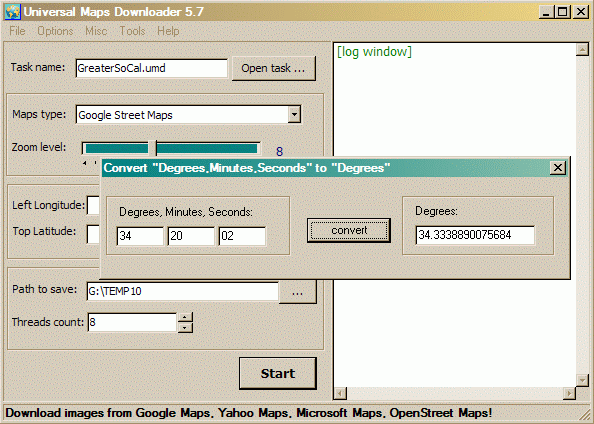
The latitude & longitude coordinates that select the area to be captured are entered in degrees and decimal degrees (DD.dddddd) -- not degrees-minutes-seconds (DDMMSS), or degrees and decimal minutes (DD MM.mmmm). A converter tool is available from the menu to convert DDMMSS to DD.dddddd. Annoyingly it won't convert the default GPS (and APRS) format of DD MM.mmmm. You can enter lat/long to any number of decimal places (at least 10). Since UMD always downloads fixed 256x256 pixel tiles, you may get an area slightly larger than requested regardless of the precision of your coordinates.
(A separate tool that converts between all
three coordinate formats is downloadable from my website. )
)
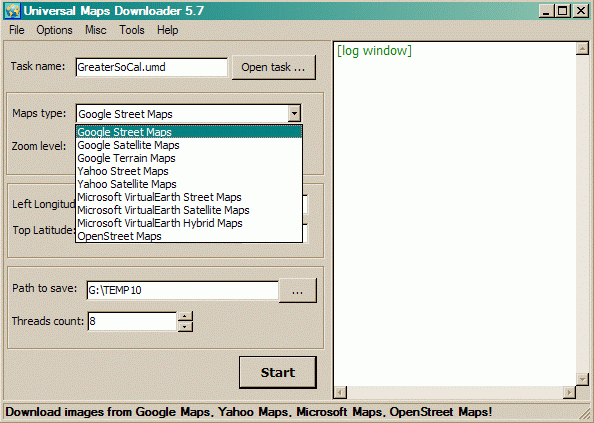
The "Maps type:" pull-down allows you to choose the source of your images. Successive releases of the program every few months keep expanding the range of choices.
The "Task name" entry box above "Maps type:" allows you to save all the settings on the screen to a named file. This is useful for downloading images from several different sources with exactly the same lat/long and zoom settings. Later, the lat/long values can be copied/pasted into .SAT or .INF calibration files for maps used in various programs. These will only be approximate starting points that will need some trial & error "tweaking" to bring the map into precise alignment (since the actual captured areas will always be slightly larger than requested).
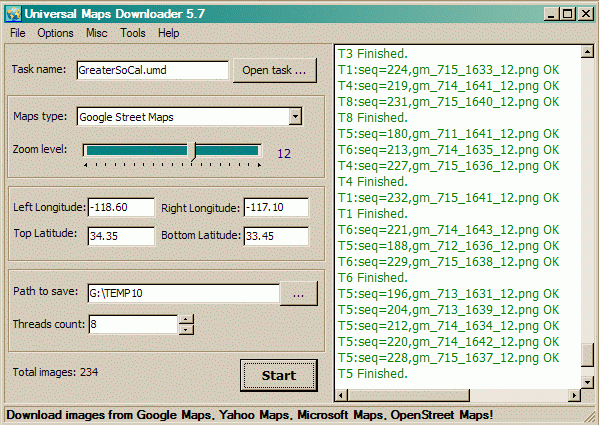
With all the settings selected and/or entered, you click the
"Start" button. Depending on the number of tiles requested (which is computed
and displayed in the lower left corner), the download time will range from
nearly instantly to several minutes or more. In this screen shot, the resolution is
set to the default "Zoom Level 12". This is the most detailed that the
unregistered/trial version of the program will accept.
The log file in the right window shows a list of the tiles captured. This
data is also automatically saved to the file
nnnn_log.txt where
nnnn is the Task Name assigned to the capture. This file is saved into the same
directory specified for "Path to save:"
If you you scroll the log display back to the top (or open the log file in Notepad), you will see two sets of coordinates representing the upper-left and lower-right corners of the captured map area. The first set are the values you entered. The second set (circled in the screen shot below) are the actual area captured, resulting from rounding up to boundaries of the tiles required to capture the desired area. The second set of coordinates (circled below) are the exact values you need to precisely calibrate the map for use in APRS programs! Just copy and paste these values into the appropriate .INF or .SAT file. (You may have to convert the DDD.dddddd decimal degrees format into the GPS/APRS format of DD MM.mmmmmm format for some programs.)
run.
The downloaded tiles are saved as .PNG files, but the "Map Combiner" auto-stitcher produces a .BMP file as it's output. The default saved image is in 24-bits-per-pixel photographic "high-color" format which results in unnecessarily large files. Reducing the color depth to 256 colors (8-bits-per-pixel) with an image editor program such as Windows Paint or IrfanView, and then resaving the file, will cut the file size to one-third of the original. I used the freeware IrfanView utility to convert these to .GIF format (which intrinsically is limited to 256 colors or less). The links below provide examples of the map images produced by the various sources.
Some of these samples are very large (2000x3000
pixels or more) images. Some browsers will attempt to downsize oversized
images to fit the browser window. Turn off this automatic resizing to
see the highest-quality images. You will then have to scroll
horizontally and/or vertically to view the entire map.
Note that most APRS programs (UIview, APRSplus, etc) will allow you to use
images far larger than your screen; your application becomes a scrollable view
port showing part of a much larger image. I have successfully used
images of 4000x5000 pixels with UIview running on a 1024x768 XGA screen. The
key is to reduce the color depth of images to only 16 or 256-colors from the
default 24-bit photographic "high-color"; this cuts the amount of image data
the program has to deal with to one-third.
Warning! Some of these sample
GIF images are very large files. Most are between 1 and 5 megabytes. A
couple are around 10 MB. They will take significant time to download.
Each sample opens in a new window (tab in modern browsers) for quick comparison.
Greater Los Angeles Regional
View (About 85 Miles Across)
|
Captured From Google Maps |
| Streets Zoom Level 10 (614 KB) |
| Streets Zoom Level 11 (1.9 MB) |
| Streets Zoom Level 12 (5.8 MB) |
| Satellite Zoom Level 10 (1 MB) |
| Terrain Zoom Level 11 (3 MB) |
| Terrain Zoom Level 12 (9.8 MB) - HUGE!) |
Captured From Microsoft Virtual Earth |
| Streets Zoom Level 11 (1.9 MB) |
| Streets Zoom Level 12 (5.9 MB) |
| Satellite Zoom Level 11 (3.4 MB) |
| Hybrid [Streets & Satellite] Zoom Level 11 (3 MB) |
| Hybrid [Streets & Satellite] Zoom Level 12 (11.3 MB - HUGE!) |
Captured From Yahoo Maps |
| Streets Zoom Level 11 (1.9 MB) |
| Streets Zoom Level 12 (6.3 MB) |
| Satellite Zoom Level 11 (3.1 MB) |
Captured From Open Street Maps |
| Streets Zoom Level 11 (1.7 MB) |
| Streets Zoom Level 12 (5.6 MB) |
Pasadena, CA City Scale View (About 6 Miles
Across)
|
Google Maps |
| Streets Zoom Level 12 (140 KB) |
| Streets Zoom Level 14 (544 KB) |
| Terrain Zoom Level 12 (220 KB) |
| Terrain Zoom Level 14 (1.3 MB) |
Microsoft Virtual Earth |
| Hybrid [Streets & Satellite] Zoom Level 12 (140 KB) |
| Hybrid [Streets & Satellite] Zoom Level 14 (1.5MB) |
Yahoo Maps |
| Streets Zoom Level 12 (160 KB) |
| Streets Zoom Level 14 (160 KB) |
Unlocking the Power of SSIS 971: A Comprehensive Guide to Free Resources
SQL Server Integration Services (SSIS) 971 is a powerful tool for building enterprise-level data integration and workflow solutions. However, with its vast array of features and capabilities, it can be overwhelming to navigate, especially for those on a tight budget. In this article, we'll explore the world of SSIS 971 and uncover free resources to help you get started.
What is SSIS 971?
SSIS 971 is a part of the Microsoft SQL Server 2019 release, offering a wide range of tools for data integration, data transformation, and data migration. With SSIS 971, you can connect to various data sources, transform and process data, and load it into your target systems.
Why Use SSIS 971?
SSIS 971 offers numerous benefits, including:
Free Resources for SSIS 971
While SSIS 971 is a part of the SQL Server 2019 release, there are many free resources available to help you get started:
Getting Started with SSIS 971
To get started with SSIS 971, follow these steps:
Conclusion
SSIS 971 is a powerful tool for data integration and workflow solutions. With its vast array of features and capabilities, it can seem overwhelming, but with the free resources outlined in this article, you can get started and unlock its full potential. Whether you're a developer, data analyst, or business intelligence professional, SSIS 971 has something to offer. So why wait? Start exploring SSIS 971 today and take your data integration skills to the next level.
Exploring SSIS and Finding Free Resources
SQL Server Integration Services (SSIS) is a powerful tool for building enterprise-level data integration and data transformation solutions. It's part of Microsoft's SQL Server suite but can also be used with other data sources. However, the cost of SQL Server and, by extension, SSIS can be prohibitive for individuals or small businesses looking to leverage its capabilities.
SQL Server Integration Services (SSIS) is a component of the Microsoft SQL Server database software that enables data integration and workflow solutions. It's primarily used for data migration, data transformation, and data loading.
| Concept | What to Learn | Free Resources |
|---------|---------------|----------------|
| Package & Project Structure | Packages (.dtsx), Project (.dtproj), parameters, configurations | • Microsoft Docs – Getting Started with SSIS
• YouTube: “SSIS 2022 – Create Your First Package” (search “SSIS tutorial for beginners”) |
| Control Flow | Execute SQL Task, Script Task, File System Task, For Loop, Sequence Container, precedence constraints (green/red/blue) | • SQL Server Integration Services (SSIS) Tutorial – https://www.sqlservertutorial.net/ssis/ |
| Data Flow | Sources (OLE DB, Flat File, Excel), Transformations (Derived Column, Lookup, Merge Join, Data Conversion), Destinations | • Data Flow Basics – https://www.mssqltips.com/sqlservertip/3426/ssis-data-flow-basics/ |
| Variables & Parameters | Scope, expressions, dynamic connections | • Microsoft Learn module: “Use variables and parameters in SSIS” |
| Error Handling & Logging | Event Handlers, OnError, OnWarning, SSIS logging providers (SQL Server, Text file) | • SSIS Logging – A Complete Guide – https://www.mssqltips.com/sqlservertip/2803/ssis-logging/ |
| Deploying Packages | Project vs Package deployment, SSIS Catalog, Environments, Executing via SQL Agent | • Deploying SSIS Packages to the SSIS Catalog – Microsoft Docs |
| Performance Tuning | Buffer size, EngineThreads, Parallelism, Using Fast Load | • SSIS Performance Tips – https://www.sqlshack.com/ssis-performance-tuning/ |
Suggested Study Order
dtexec).(SQL Server Integration Services – “SSIS 971” simply means “SSIS – the 9‑7‑1 style of a beginner’s roadmap” – a common shorthand you’ll see in community forums. The steps below work for any modern version of SSIS, from SQL Server 2008 R2 up through the latest 2022 release.) ssis971 free
The term "SSIS 971" does not directly map to a widely recognized component or version of SSIS. However, there are numerous free resources available for learning, developing, and optimizing SSIS solutions. It's always recommended to use well-documented and community-supported resources to ensure both the effectiveness and security of your SSIS solutions. If you have more specific details or a different context for "SSIS 971," I'd be happy to try and assist further.
Unlocking the Power of SSIS 971: A Comprehensive Guide to Free Resources
In the world of data integration and business intelligence, SQL Server Integration Services (SSIS) has established itself as a leading platform for extracting, transforming, and loading data. Among its various versions, SSIS 971 has garnered significant attention for its robust features and capabilities. However, with the ever-evolving landscape of data management, the quest for free resources and tools that can complement or even replace costly software solutions has become increasingly popular. This article aims to explore the realm of SSIS 971 free resources, tools, and alternatives that can empower data professionals to achieve their goals without breaking the bank.
Understanding SSIS 971
Before diving into the free resources available for SSIS 971, it's essential to understand what SSIS 971 entails. SSIS, or SQL Server Integration Services, is a software platform used for building enterprise-level data integration and workflow solutions. It provides a wide range of tools for data extraction, transformation, and loading (ETL) processes, enabling organizations to integrate data from various sources, apply transformations, and load it into a target system, such as a data warehouse or database.
The version "971" typically refers to a specific build or update within the SSIS suite, likely indicating a cumulative update or service pack released for SQL Server 2017 (which includes SSIS 2017, build 14.0.3023.0, also known as KB 4458877 or SQL Server 2017 CU18). This particular version includes several enhancements, bug fixes, and improvements over its predecessors, emphasizing better performance, security, and usability.
Why Opt for Free Resources?
In today's economic climate, cost optimization is a critical factor for businesses of all sizes. The demand for free or open-source tools has surged, driven by the need to reduce expenses without compromising on functionality or performance. For data professionals and organizations leveraging SSIS 971, exploring free resources can offer several benefits:
Cost Savings: The most obvious advantage is the reduction in software costs. Free tools and resources can significantly lower the total cost of ownership (TCO) for data integration projects.
Flexibility and Scalability: Many free tools are open-source, offering a level of flexibility and customizability that commercial products may not provide. This can be particularly valuable for projects with unique requirements.
Community Support: The ecosystems surrounding popular free and open-source tools are often vibrant and supportive, providing a wealth of knowledge, forums, and user groups.
SSIS 971 Free Resources and Alternatives
While there may not be a direct "SSIS 971 free" version available (as SSIS is a part of Microsoft's SQL Server offerings, which typically require a license), several free resources, tools, and alternatives can complement or serve as substitutes for certain aspects of SSIS:
Microsoft's Free Tools: Microsoft offers several free tools that can be used alongside SSIS, such as SQL Server Management Studio (SSMS) for database administration and the SQL Server Data Tools (SSDT) for developing SSIS packages.
Apache NiFi: A free, open-source data integration tool that supports real-time data ingestion and event-driven data processing. It offers a user-friendly interface for data flow management.
Pentaho Data Integration (Kettle): This is another powerful, open-source ETL tool that supports a wide range of data sources and destinations. It offers a graphical interface for designing data integration workflows.
Talend Open Studio: A free, open-source ETL tool that provides a comprehensive platform for data integration, data quality, and big data integration. Unlocking the Power of SSIS 971: A Comprehensive
Informatica PowerCenter Express: A free version of Informatica's data integration platform, offering a range of data integration capabilities, though with limitations compared to the full version.
Harnessing the Power of Community and Documentation
Beyond tools and software, the SSIS community and official documentation are invaluable resources for learning and troubleshooting:
Microsoft Docs: The official documentation for SSIS provides extensive guides, tutorials, and reference materials.
SSIS Forum: Microsoft's forums and community spaces are filled with discussions, tips, and advice from experienced SSIS users.
Stack Overflow: A vast repository of questions and answers related to programming, including SSIS development.
Conclusion
While there may not be a single, comprehensive "SSIS 971 free" solution available, the landscape of data integration is rich with free tools, resources, and community support. By leveraging these free resources, data professionals can design, implement, and manage efficient data integration solutions that meet their needs without incurring significant costs. Whether you're developing ETL processes, managing data workflows, or seeking advice on best practices, embracing free resources can be a strategic move towards optimizing your data management capabilities.
Many developers assume SSIS requires a full SQL Server license, but you can actually build and test your data packages for $0 using these tools:
Visual Studio Community: This is the "secret sauce." You can download the Visual Studio Community Edition for free. It provides the full environment needed to design and develop SSIS packages.
SQL Server Integration Services Projects Extension: To unlock the SSIS toolbox within Visual Studio, you simply need to install the free SSIS extension from the Visual Studio Marketplace.
SQL Server Developer Edition: For a full backend experience, the SQL Server Developer Edition is free for non-production use. It includes all the features of the Enterprise edition, allowing you to test complex SSIS workflows locally. 💡 Why Learn SSIS?
Even in the age of "Modern Data Stacks," SSIS remains a workhorse for many enterprises. Mastering it allows you to:
Move Data Anywhere: Easily connect to Excel, Flat Files, Oracle, and Azure.
Clean on the Fly: Use built-in transformations to scrub and format data before it hits your database.
Automate Boring Tasks: Set up workflows that handle everything from FTP downloads to sending automated email alerts when a data load fails. 🛠️ Common "Free" Workarounds
For those searching for specific community versions or scripts (sometimes referred to by codes like ssis971), always ensure you are downloading from official Microsoft sources. Community forums like Stack Overflow and Microsoft Learn are the best places to find free scripts and troubleshooting tips for specific error codes or configurations. Improved Data Integration : SSIS 971 allows you
does not appear to be the name of an academic paper or software tool. In search results, this specific alphanumeric code is predominantly associated with Japanese Adult Video (JAV) content featuring actress Ria Yamate
If you are looking for an "informative paper" on a topic with a similar acronym, it likely refers to one of the following academic or technical fields: 1. Surgical Site Infections (SSI) In medical literature,
refers to infections that occur at a wound site within 30 days of surgery. PubMed Central (PMC) (.gov) Key Findings:
These are among the most common and costly healthcare-associated infections. Prevention:
Strategies include preoperative patient optimization (e.g., smoking cessation, glycemic control) and intraoperative measures like antibiotic prophylaxis. Categories: Infections are classified as superficial incisional deep incisional organ/space PubMed Central (PMC) (.gov) 2. Single-Session Interventions (SSI) In psychology,
describes brief, evidence-based mental health treatments designed to provide meaningful change in a single session. PubMed Central (PMC) (.gov)
Surgical site infections: a comprehensive review - PMC - NIH
SSIS 971 is a specific build of SQL Server Integration Services (SSIS) that was leaked online, allowing users to download and install it for free. Here's some information about it:
What is SSIS 971?
SSIS 971 is a pre-release version of SQL Server Integration Services, which is a part of the Microsoft SQL Server suite. It was leaked online, and users could download and install it without a valid license.
Features of SSIS 971
SSIS 971 offers various features, including:
Risks of using SSIS 971 Free
While downloading and installing SSIS 971 for free might seem appealing, there are risks involved:
Alternatives to SSIS 971
Instead of using a leaked version, consider the following alternatives:
In conclusion, while SSIS 971 might seem like an attractive option, it's essential to consider the risks and explore alternative solutions that ensure security, support, and compliance with licensing terms.
I’m not sure what you mean by “ssis971 free.” I’ll assume you want a detailed write-up about the SSIS 971 free course/package/tool—I'll produce a clear, structured overview including what it is, features, installation, usage, common issues, and alternatives. If you meant something else (a license key, a different product, or piracy), tell me and I’ll adjust.